
How to Build an AI Chatbot with Human Handoff: Setup, Triggers & Examples
An AI chatbot with human handoff lets a visitor move from an automated chatbot conversation to a live person without starting over. The agent can pick up with the conversation context, including what the visitor asked and how the chatbot responded.
With Social Intents, your chatbot can answer initial questions and escalate to your team in Microsoft Teams, Slack, Google Chat, or the web dashboard. The visitor stays in the website chat while your team takes over.
In this article we'll show you how to set this up easily to transfer your chats directly to your collaboration tools like Microsoft Teams.
Example: A chatbot hands a billing question to an agent
This illustrative conversation shows a configured handoff scenario:
Customer: Can you explain why I was charged twice?
AI chatbot: I can help with general billing questions, but I can’t verify the charges on your account. Select “Talk to an Agent” so our team can review this.
Customer: Clicks Talk to an Agent.
Handoff message: Thanks. We’ve notified our team that you’d like help. Please wait while we contact an agent.
Agent: Hi, I see you’re asking about two charges. I can help investigate that. Were both charges posted, or is one still pending?
The useful part is the agent’s first response. It acknowledges the issue and moves the conversation forward.
How to set up human handoff in Social Intents
This example uses the ChatGPT integration. If your chatbot already answers questions on your website, start at Step 3.
1. Connect the collaboration tool your agents will use
First, decide where your team will answer escalated chats.
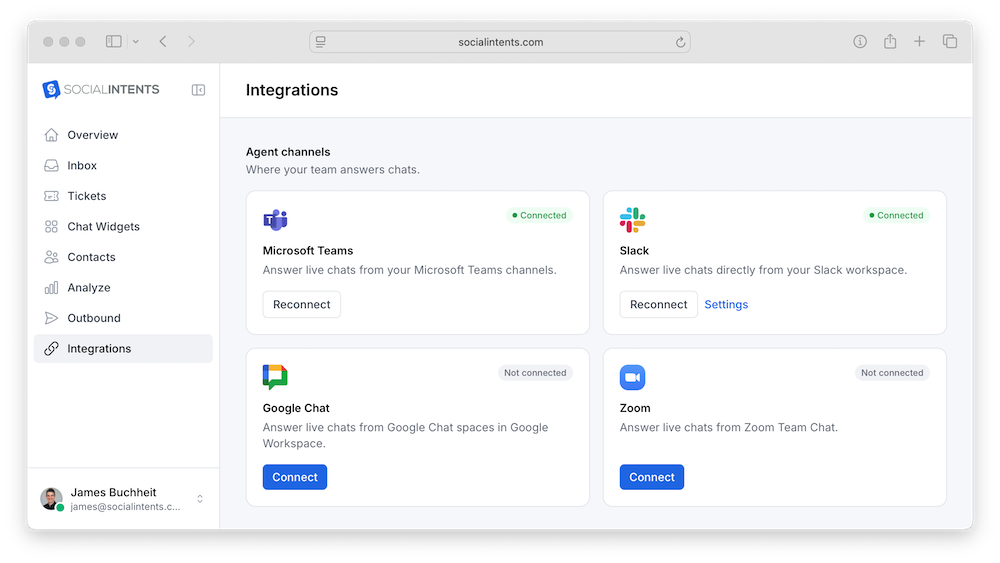
Social Intents supports a built-in web inbox and integrations with Microsoft Teams, Slack, Google Chat, Zoom, and Webex. Connect your preferred platform and configure your agents before testing the escalation handoff.
First, go to the Integrations link in the left side bar and select your integration.
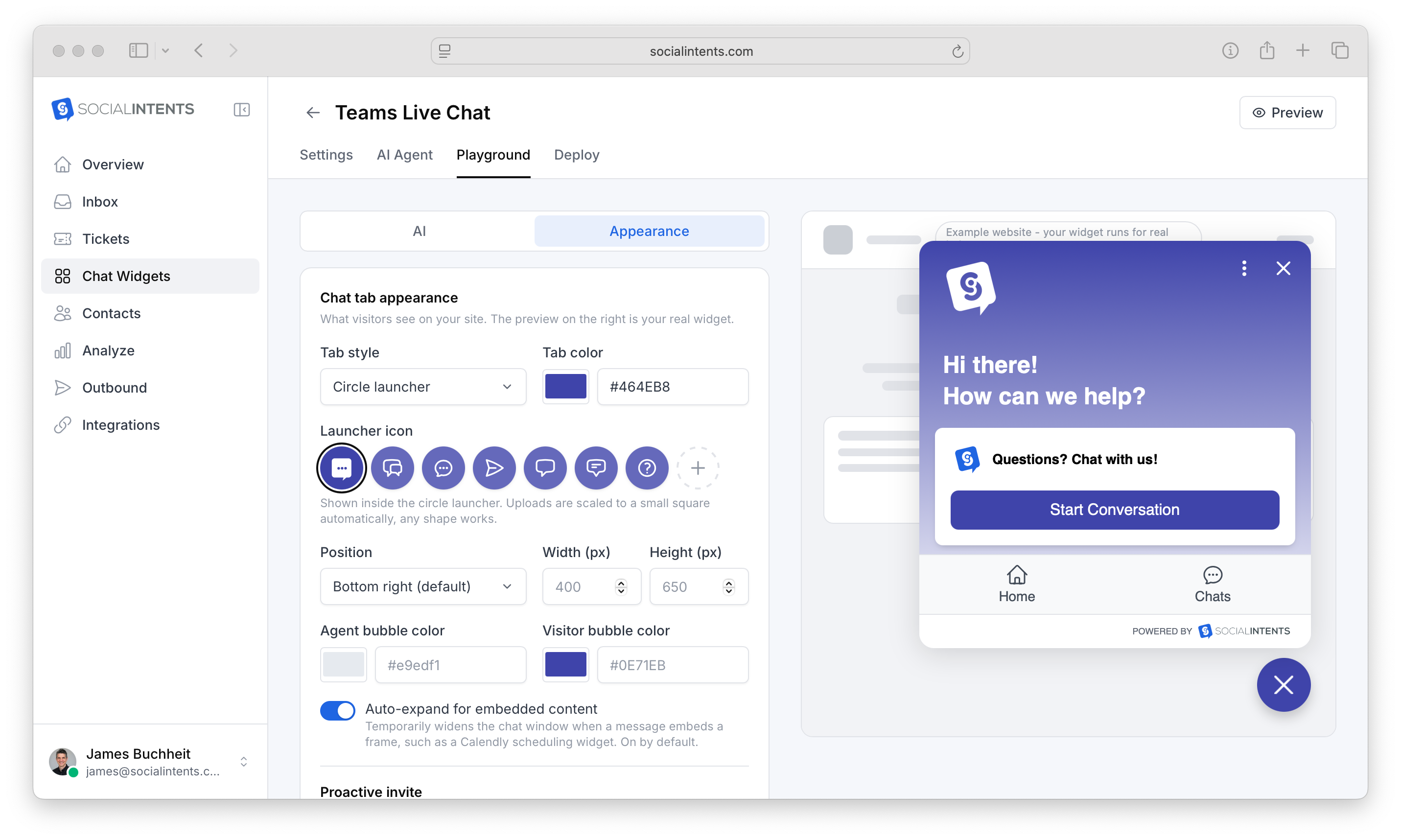
Next, send a test message to your chatbot and answer it as an agent. This confirms that your team can receive and respond to website chats. To do this, click on the Chat Widgets link in the left side-bar, select the Manage link in your preferred Chat widget and then choose the Playground tab. In the playground area on the right side, start a conversation.
Alternatively, you can click on the Preview link on the top of this page to open a standalone preview url.
2. Enable and train your chatbot
Now you're ready to enable the AI in your chat widget. Open your Live Chat widget’s settings and select the AI Agent tab and toggle your ai agent to on.
For the ChatGPT setup:
- AI Only for When the AI response. This will have the AI respond immediately.
- Select ChatGPT (OpenAI) as the chatbot type.
- Pick your ChatGPT model
For an AI-first workflow, choose AI Only. This setting still allows human escalation. It means agents are invited when an escalation triggers, rather than at the beginning of every chat.
Other documented options cover different workflows:
| Your workflow | Setting to look for | Behavior |
|---|---|---|
| AI answers first | Chatbot Only | Agents are invited when escalation triggers. |
| Agents monitor from the start | Add Chatbot to All, Drop when Agent Joins | AI and agents are invited; AI drops out when an agent responds. |
| Humans answer first, with AI as backup | Add Chatbot when Chat is Offline or Missed | AI answers when chat is offline or agents miss the request. |
You can then train your chatbot under the Data sources link in the AI Agent settings based on your business data.
3. Configure human escalation phrases
In the Handoff settings, add the words visitors can use to request help.
Some typical phrases you can use are:
*talk to an agent*representativeagenthuman
The first example uses wildcards around the phrase. When a configured phrase matches, Social Intents notifies agents and places the conversation in the live chat queue.
Start with explicit requests for a person. Then test additional phrases your customers actually use.
Avoid overly broad triggers. A visitor asking “What is your refund policy?” may only need an answer from your published policy. Someone saying “I need help disputing a charge” may need a person.
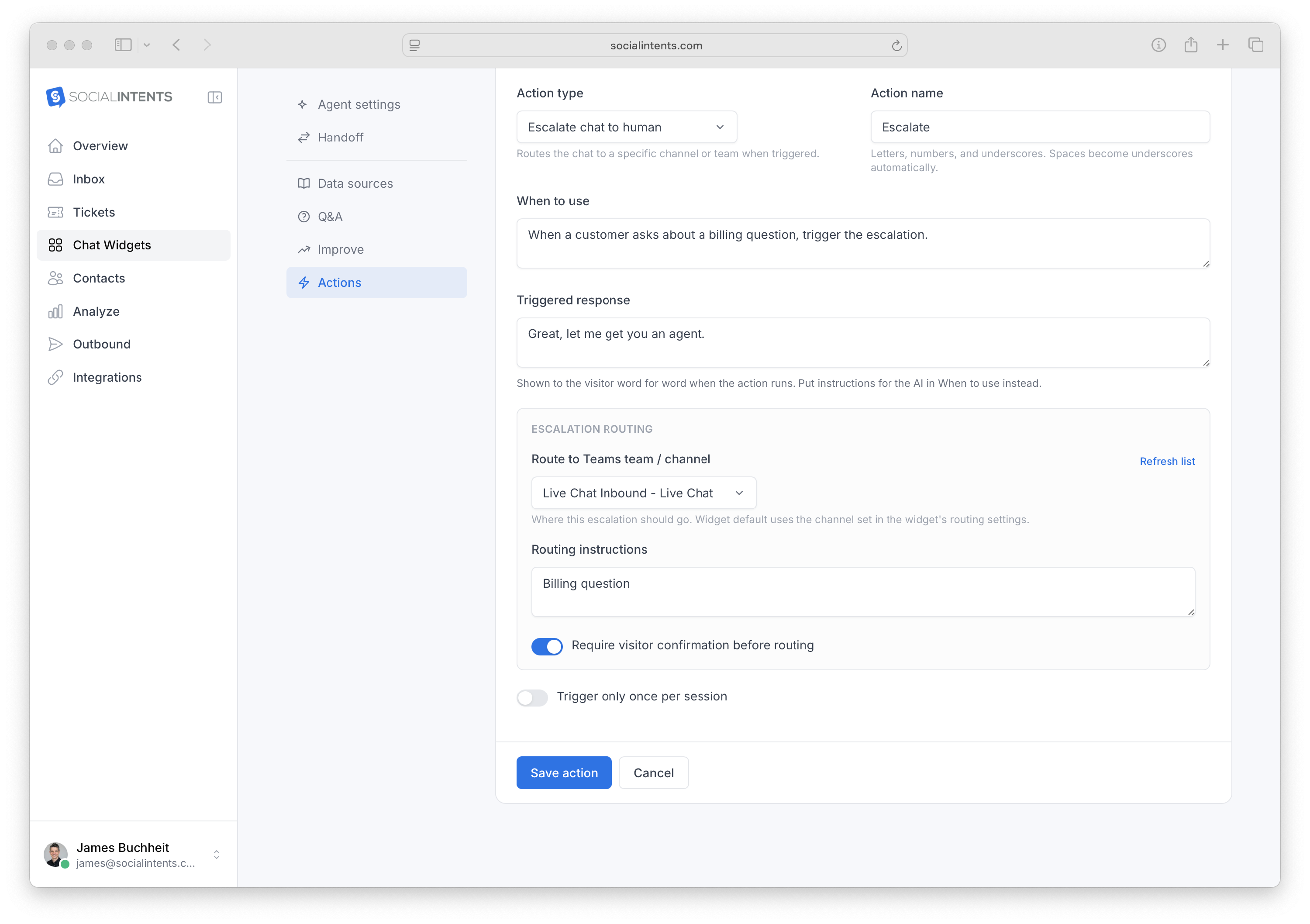
 Social Intents also supports intent-based escalation triggers under the Actions settings. To set up an intent based escalation, select to create a New Action under the Actions link, then choose an Action type of Escalate chat to human. You then enter the When to use field for what types of questions can trigger this Custom Action. For instance you can enter "When a customer has a billing question", or "When a customer asks about returns". In these scenarios you can then escalate to a specific Team or Channel in your collaboration tool.
Our intent based escalation feature using a custom Action gives you granular control on your escalation rules.
4. Add a visible “Talk to an Agent” option
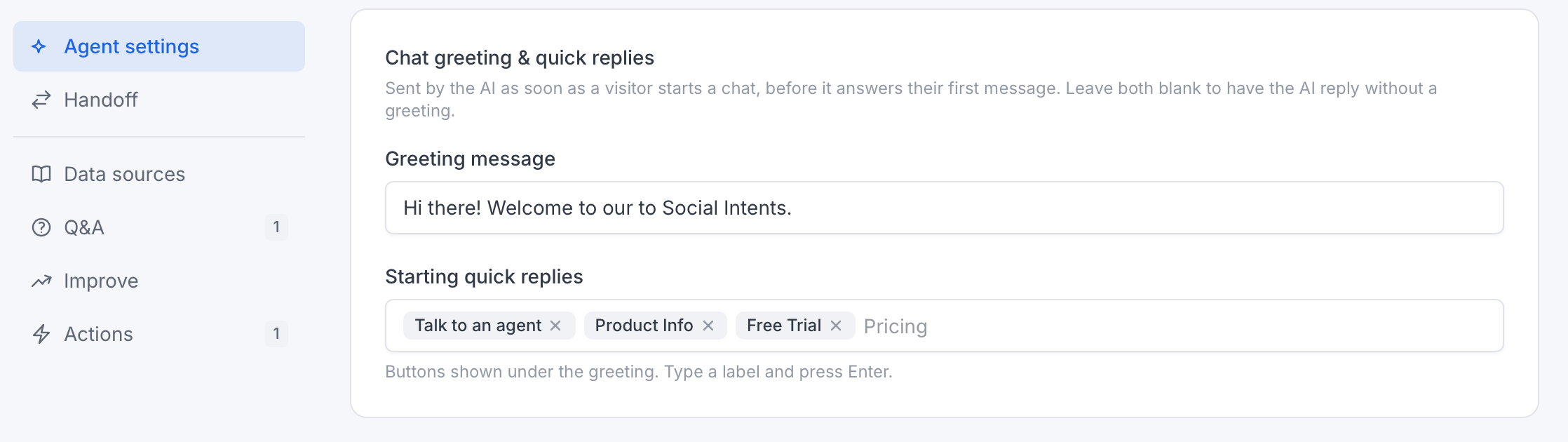
Next, you'll want to make the options to handoff to a human visible in the chat window. To do this, add Quick Replies under Agent Settings to configure a matching escalation phrase.
This gives visitors a button at the beginning of the chatbot interaction. They don’t have to guess which words will reach your team. The help guide documents this quick-reply approach.
Set Human Escalation Confirmation Text to explain what is happening:
Thanks. We’ve notified our team that you’d like help. Please wait while we contact an agent.
That field displays a message when escalation triggers. Avoid promising a specific wait time unless your team can meet it.
5. Test the agent takeover
Open your website as a visitor and ask a question covered by your training content. Then request an agent.
Check that:
- The chatbot gives a relevant initial answer.
- The typed request or button triggers an agent notification.
- The agent can review the conversation context.
- The agent’s reply appears in the visitor’s widget.
- The chatbot stops replying after the takeover.
Social Intents also documents manual intervention: an agent monitoring an active AI conversation in the live chat console can respond to take over, causing the AI to drop out.
What happens when no agent is available?
An escalation requests human help. It does not guarantee that someone is available to answer.
Configure and test these two situations separately.
Your live chat is offline
Social Intents lets you control availability through an online schedule or agent status. Depending on your configuration, an offline widget can collect messages through a form, allow the chatbot to answer, or be hidden.
Set your business hours and holiday schedule in the widget settings. Then choose whether visitors should receive AI assistance or leave an offline message. See the online and offline availability guide.
Suggested offline wording:
Our live team is currently offline. Please leave your email and a short description of what you need help with so we can follow up during business hours.
Use that message with a configured contact form or another working way to collect the details.
Your team misses a chat
The Offline or Missed chatbot action provides AI coverage when agents are unavailable or do not answer. The documented default missed-chat timeout is three minutes and can be adjusted.
That setting describes when AI picks up a chat. Don’t assume it defines every outcome when an AI conversation later requests a human.
Test an unanswered escalation in your own widget. Confirm what the visitor sees, how they can leave contact details, and where your team finds the conversation. Missed and offline chats are visible in the Inbox under the Unanswered filter.
Which conversations should go to a human?
Use this as a starting policy for your team:
| Situation | Recommended approach |
|---|---|
| The visitor explicitly requests a person | Provide a direct handoff option. |
| The answer is in your help content | Let AI answer, with human help available. |
| The question requires account investigation | Direct the visitor to your team. |
| Troubleshooting isn’t helping | Offer a person rather than repeating the same instructions. |
| A prospect wants to discuss a specific purchase | Make it easy to reach sales. |
These are recommended support decisions, not a list of automatic rules enabled by default.
For a more guided experience, Social Intents documents chatbot instructions that produce clickable menu buttons, including buttons that trigger agent escalation. This can help visitors choose human assistance during a conversation. See the menu button setup guide.
Don’t confuse these configured flows with a built-in confidence threshold, sentiment score, or automatic “three failed answers” counter. Those are different capabilities and are not part of the setup shown here.
A quick checklist before going live
Run these tests before relying on the workflow:
- Ask a question the chatbot should answer.
- Ask something your training content does not cover.
- Type each configured escalation phrase.
- Click the human-help button.
- Reply from your agent inbox and confirm AI stops.
- Request a person when nobody answers.
- Repeat the test outside business hours.
- Confirm you can find missed conversations and follow up.
For each test, judge the visitor’s experience: Is it clear who is responding, whether a person has been contacted, and what happens next?
Why combine AI answers with human support?
The value is straightforward. AI can handle repeat questions, while people handle conversations that require investigation, judgment, or a more personal response.
A useful handoff also gives your team feedback. If visitors repeatedly need help with the same setup step, improve the relevant help article and chatbot training. If they need account-specific assistance, make that path easier to reach.
Start with one working flow: a trained chatbot, a visible human-help option, a connected agent inbox, and a tested after-hours experience.
Follow the Social Intents chatbot setup guide to connect your chatbot, then use the steps above to give visitors a clear path to your team.