
How to Create a WhatsApp Message Template for Customer Service
In this article we are going to show you how to create a WhatsApp message template, why it's important when you're using WhatsApp for customer service, and how you can use that template to keep the sales and support conversations active in WhatsApp over multiple days by re-engaging your customers even after the 24-hour message delivery window.
WhatsApp Business API message templates standardize your responses, reduce response time, and ensure consistent messaging across your entire support team. For businesses handling high message volumes, templates can cut response time by up to 80% while maintaining quality customer interactions.
This guide walks you through the complete process of setting up WhatsApp message templates in Meta's platform, implementing utility templates for strategic re-engagement, and integrating everything with a unified inbox system that transforms how you handle customer service.
Key Takeaways
- WhatsApp message templates reduce response time by up to 80% while ensuring consistent, professional communication across your support team
- Utility templates enable proactive customer re-engagement and can be sent outside the 24-hour messaging window for better customer retention
- Meta's WhatsApp Business API requires template approval before use, with specific formatting requirements and compliance guidelines
- Integration with collaboration tools like Microsoft Teams and Slack through platforms like Social Intents creates a unified customer service workflow
- Template effectiveness should be measured through delivery rates, response rates, and customer satisfaction metrics to optimize performance
How to Use WhatsApp Message Templates for Customer Service
WhatsApp Business message templates are pre-approved message formats that businesses use to initiate outbound conversations or send notifications outside the standard 24-hour messaging window. These templates must be approved by Meta before businesses can use them.
The template system exists for a specific reason: WhatsApp wants to prevent spam while enabling meaningful business communications. Every template undergoes review to ensure it provides value to recipients and follows platform guidelines. This approval process typically takes 24 to 48 hours, though complex templates might require additional review time.
Templates fall into three main categories that determine how and when you can use them. Utility templates handle transactional messages like order confirmations, support chat re-engagement, shipping updates, and account notifications. Marketing templates promote products or services and have stricter sending limitations (and no guaranteed delivery unless your customers have opted in). Authentication templates deliver verification codes and security-related messages. Understanding these categories helps you select the right template type for each type of customer interaction.
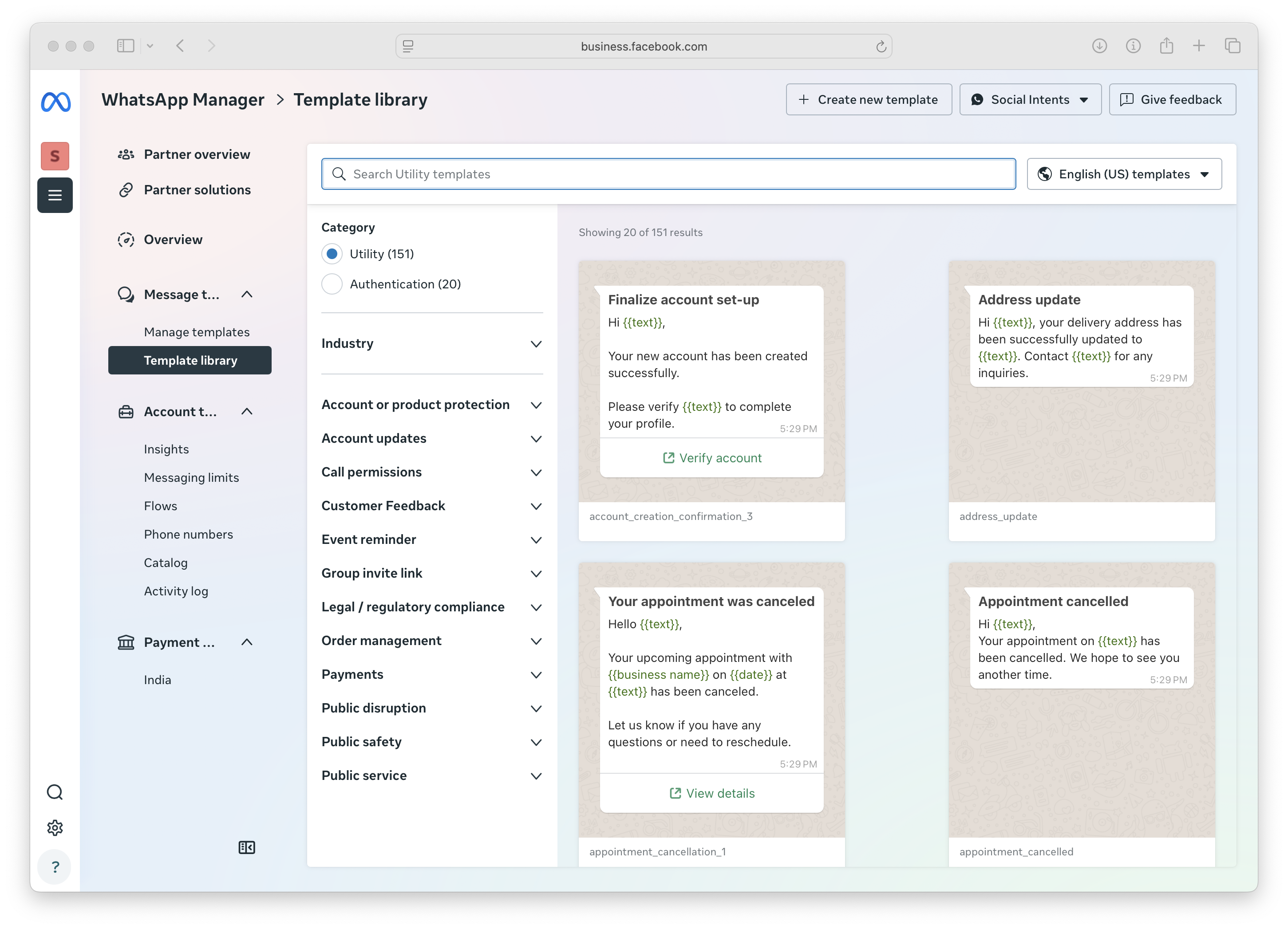
The structure of WhatsApp templates includes specific components that ensure consistency and compliance. Each template contains a header (optional), body text with placeholder variables, footer (optional), and call-to-action buttons. Variables allow personalization by inserting customer names, order numbers, or other relevant data into the message structure.
Template language and tone matter significantly for customer engagement. Messages should sound conversational while remaining professional. Avoid overly promotional language in utility templates, as Meta reviewers look for genuine customer value. The best templates solve specific customer problems or provide important updates they actually want to receive.
The Importance of Utility Templates in Customer Service
Utility templates represent the most powerful tool for proactive customer engagement in WhatsApp Business communications. Unlike marketing templates, which face sending restrictions and higher rejection rates, utility templates can be sent at any time to customers who have opted in to receive business communications.
These templates excel at re-engaging customers who haven't responded to initial inquiries or need follow-up information. Customer service teams use utility templates for appointment reminders, order status updates, policy changes, and service interruption notifications. The key advantage lies in their ability to reach customers outside the 24-hour conversation window that limits regular messaging.
Here is an example of a Re-engagement/Continue Conversation template we use in Social Intents to respond to visitors customer service questions after the 24 hour period.
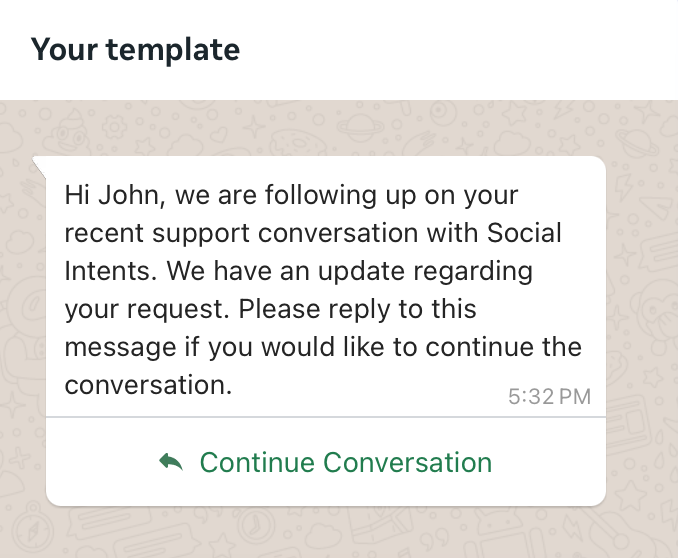
Smart businesses use utility templates strategically for customer retention. When a customer abandons their cart, a utility template can provide order assistance or address potential concerns. If technical support tickets remain unresolved, templates can proactively update customers on progress and set expectations for resolution timing.
Meta reviewers evaluate whether the template provides essential information that customers need or expect to receive. Templates that focus on genuine utility rather than sales pitches consistently achieve approval and higher engagement rates.
Step-by-Step Guide to Creating WhatsApp Message Templates in Meta Business Manager
Creating effective WhatsApp message templates requires careful planning and attention to Meta's specific requirements. The process involves accessing the right tools, structuring your content properly, and following approval guidelines that ensure your templates reach customers successfully.
Step 1: Access WhatsApp Business API in Meta Business Manager
Begin by logging into your Meta Business Manager account and navigate to the WhatsApp section. You'll need a verified WhatsApp Business account connected to your business phone number. If you haven't set this up yet, complete the verification process first, as template creation requires an approved business account.
Typically you can access your WhatsApp Business Account at this url: https://business.facebook.com/latest/whatsapp_manager/
Select your WhatsApp Business account from the business manager dashboard. Look for the "Message Templates" option in the left-hand menu. This section displays all existing templates and provides access to create new ones. The interface shows template status, approval dates, and performance metrics for existing templates.
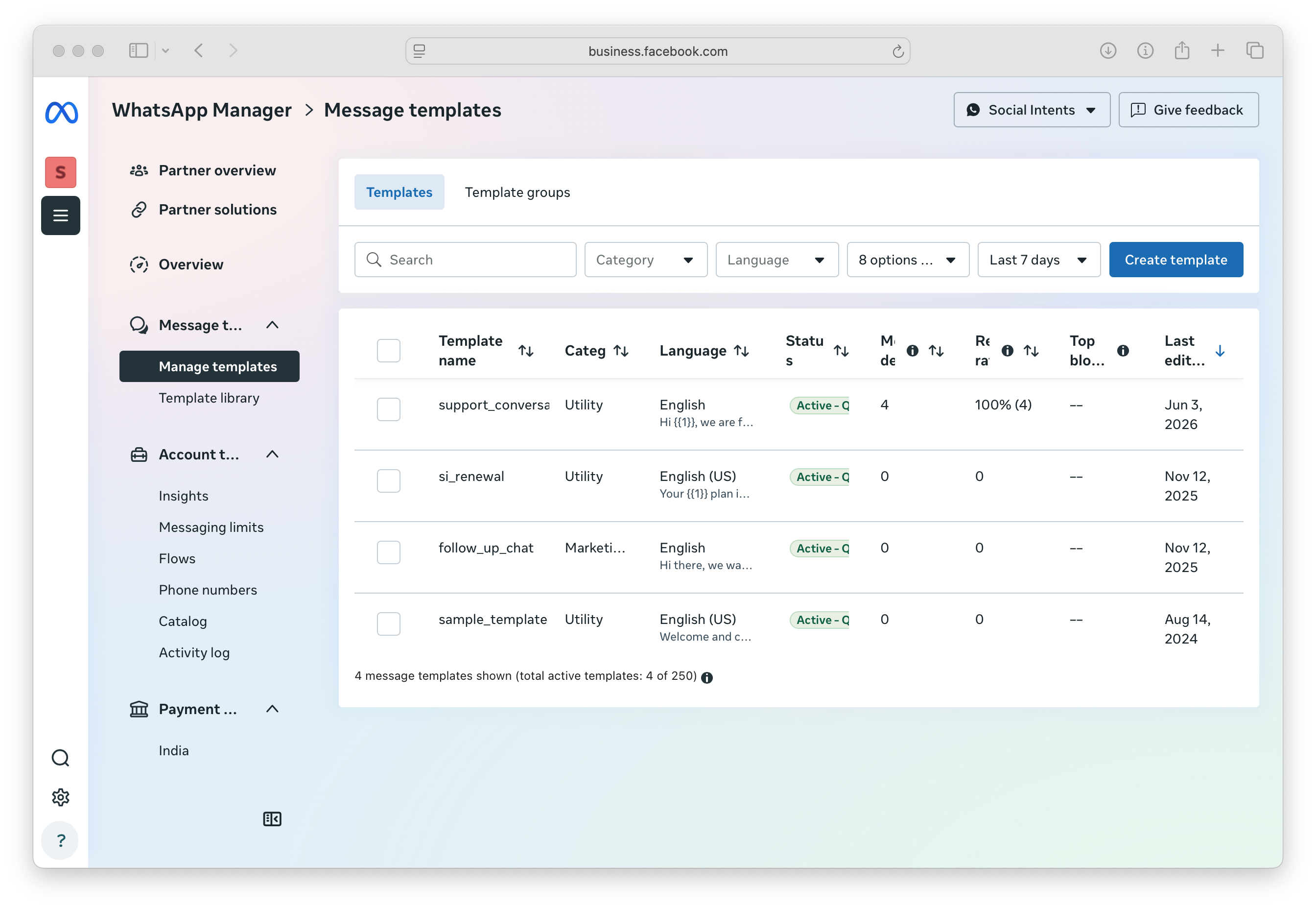
Ensure your business account has the necessary permissions for template creation. Business managers often need to grant template management access to team members who will be creating and managing customer service templates. Check that your account status shows as "Connected" and "Approved" before proceeding to template creation.
Step 2: Choose Template Category and Name
Select "Create Template" to begin the setup process. Choose "Utility" as your template category for customer service applications. The category selection determines approval requirements and sending limitations, so choosing the correct category is essential for template approval. For our Social Intents outbound messages for customer service chat, utility is the right category to ensure proper delivery.
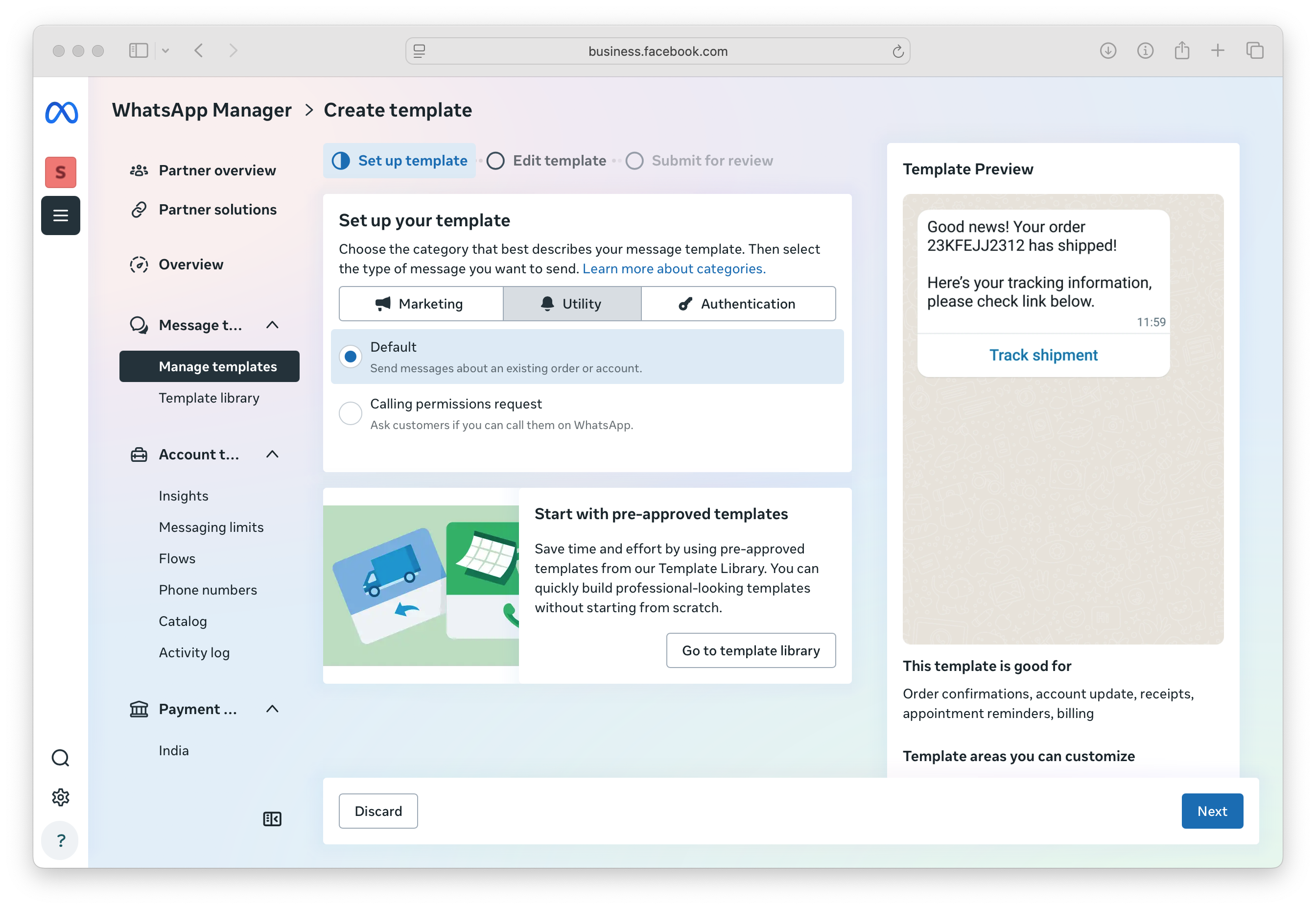
Create a descriptive template name that clearly identifies its purpose for your team. Template names should use lowercase letters, numbers, and underscores only. Good naming conventions include "order_status_update," "appointment_reminder," or "support_ticket_update." Avoid generic names that don't clearly indicate the template's function.
The template name becomes permanent once approved, so choose something that makes sense for long-term use. Consider how your team will identify and select this template when handling customer inquiries. Clear naming helps prevent confusion and ensures the right template gets used for each situation.
Step 3: Structure Your Template Content
Design your template structure with customer clarity as the priority. Start with the header section if you need to include media or location information. Most customer service templates work well without headers to keep the focus on the message content.
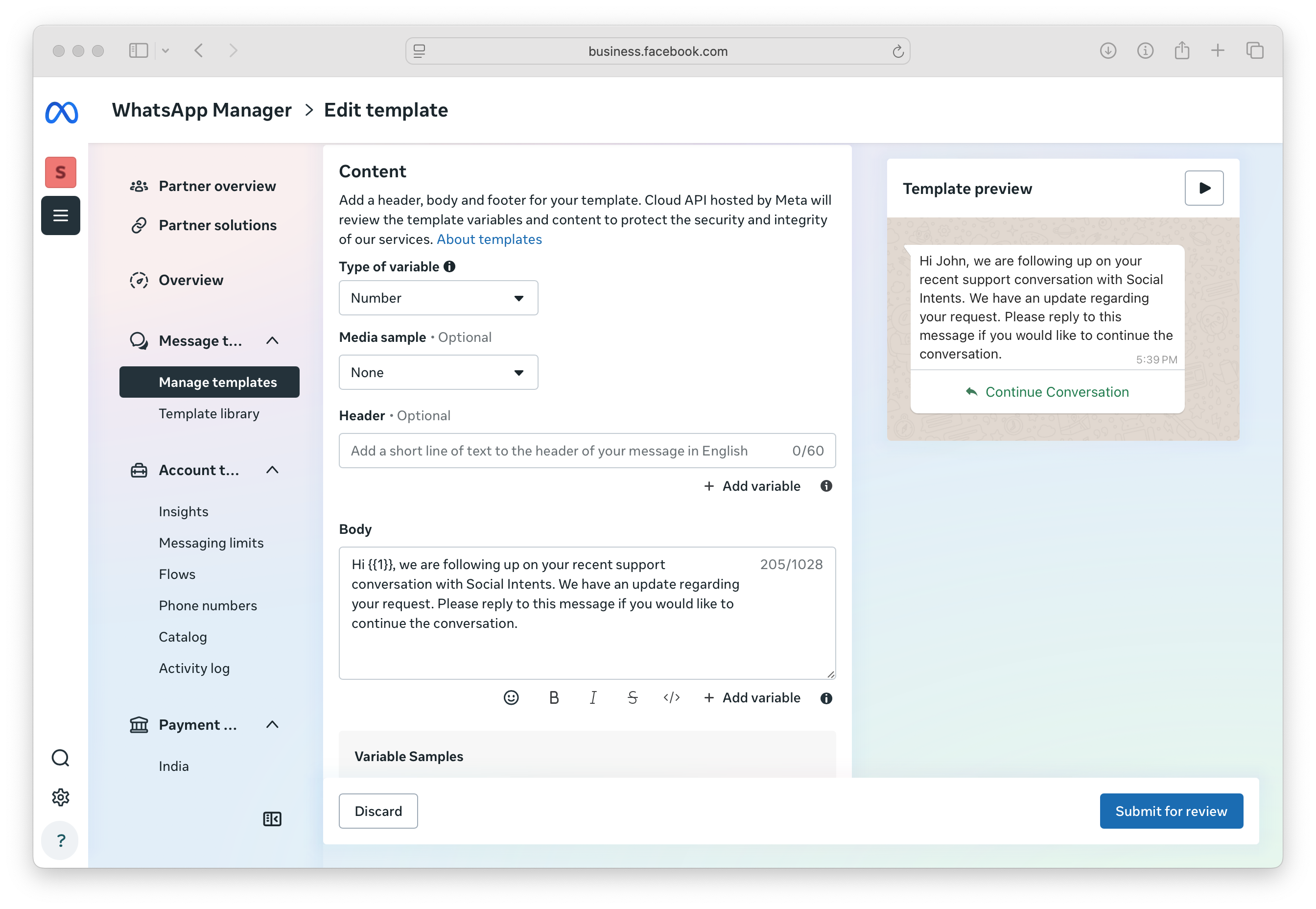
Craft your body text using conversational language that addresses the customer directly. Include placeholder variables using double curly braces ({{1}}, {{2}}, etc.) for information that changes with each message. Common variables include customer names, order numbers, appointment times, and reference numbers.
Write your message as if speaking directly to one customer, not broadcasting to a group. Use specific language that clearly communicates the message purpose and any actions the customer should take. Keep sentences concise and avoid industry jargon that might confuse customers.
Add footer text only if you need to include company branding or legal disclaimers. Many effective customer service templates skip the footer to maintain focus on the main message content. When you do use footers, keep them brief and relevant to the specific communication.
Step 4: Add Interactive Elements
Include call-to-action buttons when your template requires customer responses or specific actions. WhatsApp templates support up to three buttons that can trigger phone calls, website visits, or quick replies. Choose button actions that genuinely help customers take their next logical step. In our example, Continue Conversation is the CTA action we want the customer to click.

Other quick reply buttons can also work well for customer service templates because they provide predefined response options. Examples include "Yes, update me," "No, cancel," or "Speak to agent." These buttons reduce typing for customers and ensure consistent data for your team to process.
URL buttons should direct customers to relevant pages that support their current need. Link to order tracking pages, knowledge base articles, or appointment scheduling systems. Avoid generic homepage links that force customers to search for relevant information.
Phone call buttons provide immediate escalation options for customers who need direct assistance. Include your customer service number and ensure someone is available to handle calls generated by the template. Consider time zones and business hours when deploying templates with call buttons.
Step 5: Test Template Variables and Formatting
Preview your template with sample data to ensure variables display correctly and the message flows naturally. Enter realistic customer information in each variable field and read the complete message aloud. This testing process helps identify awkward phrasing or missing context that could confuse customers.
Check character limits for each section to ensure your content fits within WhatsApp's requirements. The body text should remain under 1024 characters, headers under 60 characters, and footers under 60 characters. Long messages often get truncated or rejected during the approval process.
Verify that your message makes sense even if customers don't have context about previous interactions. Templates should be self-contained communications that provide enough information for customers to understand and respond appropriately. Avoid references that require customers to remember earlier conversations.
Test special characters, emojis, and formatting to ensure they display correctly across different devices. While emojis can make messages more engaging, use them sparingly in customer service contexts. Focus on clarity over decoration, especially for important notifications or instructions.
Step 6: Submit Template for Approval
Submit your completed template for Meta's approval process. Include a clear business justification that explains how this template provides value to customers. The approval team reviews templates based on customer benefit, compliance with policies, and adherence to formatting requirements.
Approval typically takes 24 to 48 hours, though complex templates may require additional review time. Monitor your template status in the Business Manager dashboard and be prepared to make revisions if the initial submission gets rejected. Common rejection reasons include promotional language in utility templates, unclear customer benefit, or formatting issues.
Once approved, your template becomes available for immediate use through the WhatsApp Business API. Test the approved template with a small group of customers before rolling it out broadly. This final testing phase helps identify any real-world issues that didn't appear during development.
Implementing Utility Templates for Customer Chat Re-engagement
Utility templates unlock powerful opportunities for proactive customer communication that extends far beyond basic order confirmations. Smart customer service teams use these templates to re-engage dormant customers, provide proactive support updates, and maintain relationships during service disruptions.
The 24-hour messaging window restriction makes utility templates essential for ongoing customer relationships. When customers stop responding to regular messages, utility templates provide a compliant way to restart conversations with valuable information. This capability proves particularly valuable for subscription services, recurring appointments, and ongoing support cases.
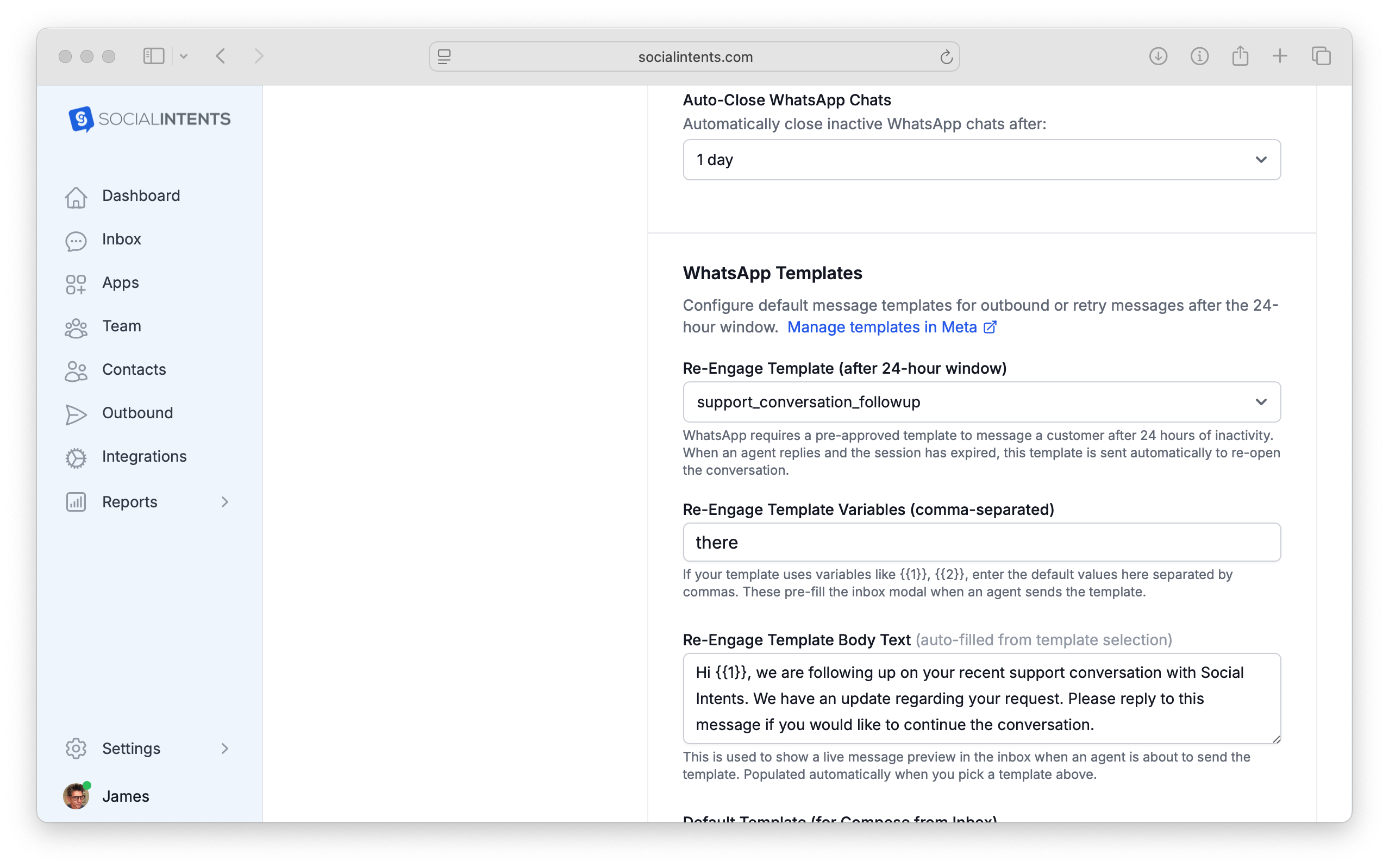
In Social Intents, for example, under your WhatsApp integration settings, you can choose which template automatically gets triggered when you reply to a customer message after 24 hours.
Timing strategy becomes crucial for utility template effectiveness. Sending appointment reminders 24 hours in advance gives customers sufficient notice while ensuring the information remains relevant. Order updates work best when triggered by actual status changes rather than predetermined schedules. Policy notifications should be sent during business hours when customers can easily contact support if needed.
Integrating WhatsApp Templates with Your Customer Service Workflow
Template deployment becomes significantly more powerful when integrated with your existing customer service tools and workflows. Modern businesses need systems that connect WhatsApp communications with their CRM data, support tickets, and team collaboration platforms.
API integration allows your customer service platform to automatically trigger appropriate templates based on customer actions or support case status changes. When an order ships, the system can automatically send an order tracking template with the customer's specific tracking information. Support ticket updates can trigger progress notification templates that keep customers informed without manual intervention.
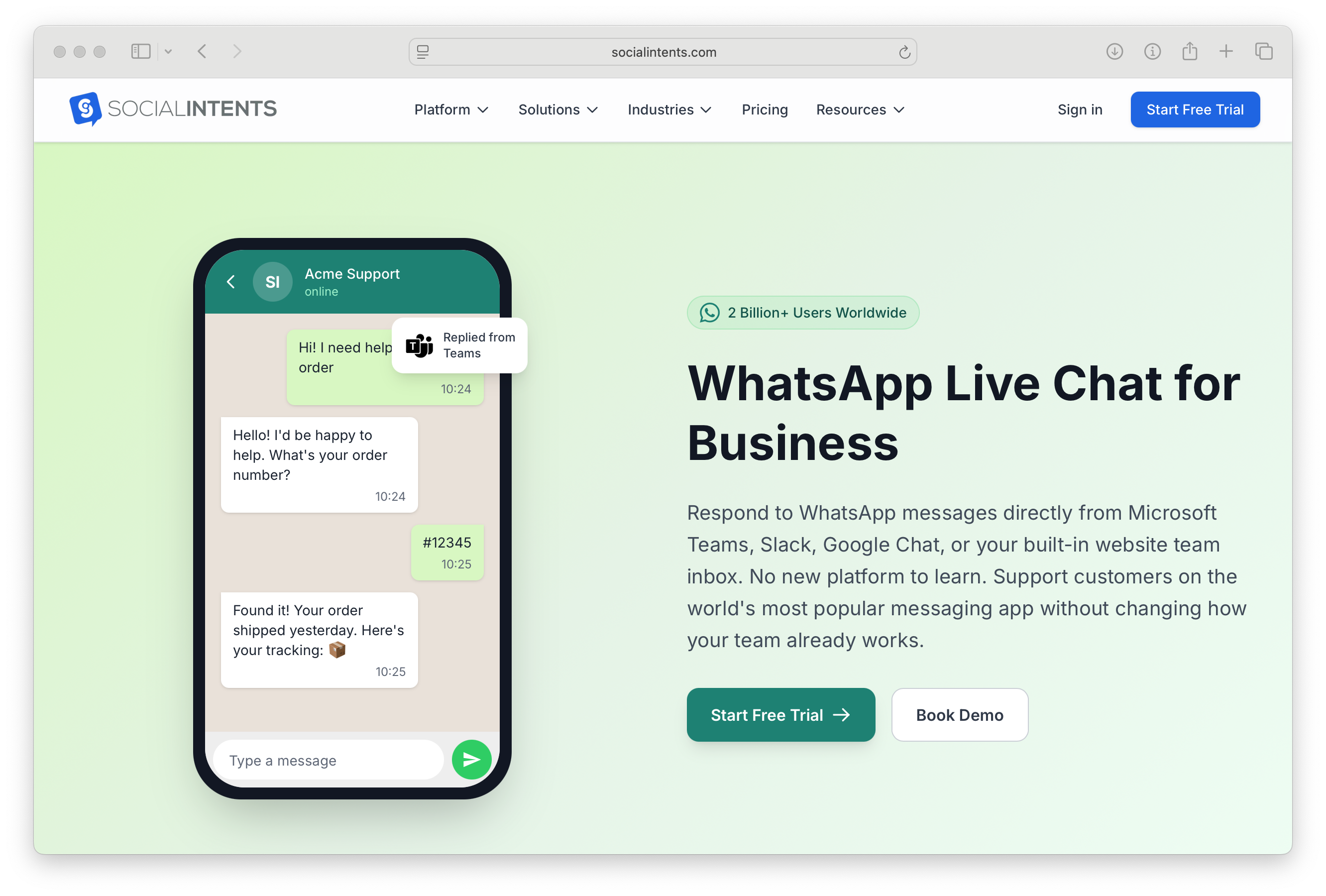
Social Intents provides a unified approach to WhatsApp customer service integration that connects directly with collaboration tools like Microsoft Teams and Slack. This integration means your customer service team can manage WhatsApp conversations alongside other communication channels without switching between multiple applications. When customers respond to templates, those messages appear in your team's familiar workspace environment.
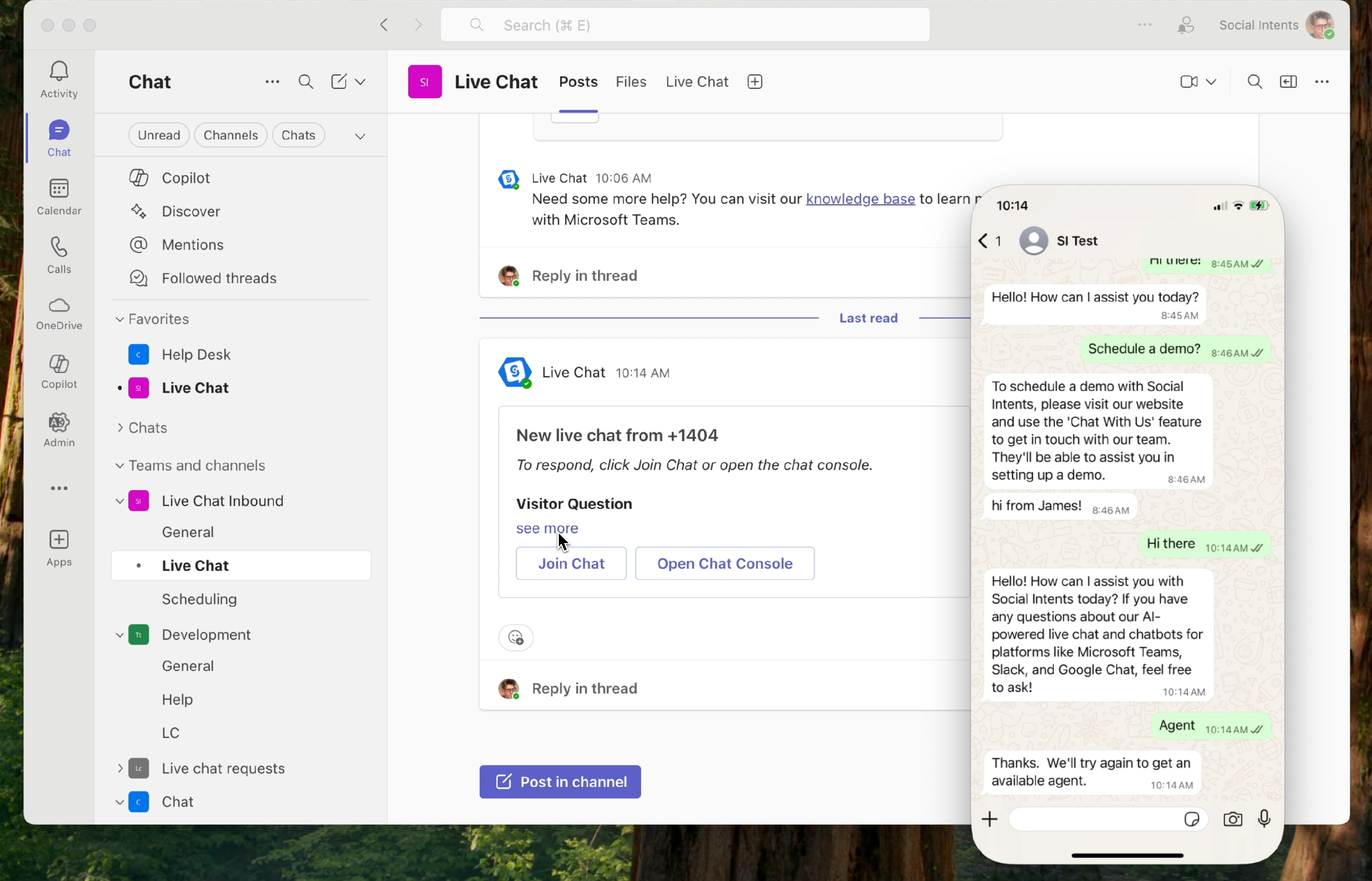
Here's an example of your WhatsApp phone number connected to your Microsoft Teams account.
Template performance monitoring becomes easier when integrated with your customer service analytics platform. Track which templates generate the most responses, identify common customer questions that follow template deployment, and measure the impact on overall support efficiency. This data helps optimize both template content and deployment timing.
Setting Up Automated Template Triggers
Configure trigger conditions that automatically deploy appropriate templates based on customer behavior or system events. Order status changes, appointment scheduling, payment processing, and support case updates all represent opportunities for automated template deployment.
Customer segmentation helps ensure the right templates reach the right audiences. Business customers might need different appointment reminder templates than individual consumers. High-value customers could receive more detailed order update templates with additional contact options. Segment your customer base and create template variations that match each group's communication preferences.
Error handling and fallback procedures become essential when automating template deployment. Systems should verify that customer phone numbers are valid WhatsApp Business contacts before sending templates. Failed deliveries need proper logging and manual review processes to ensure important communications reach customers through alternative channels.
Questions? We've Got Answers about your WhatsApp Templates
What's the difference between WhatsApp Business templates and regular messages?
WhatsApp Business templates are pre-approved message formats that allow businesses to initiate conversations or send messages outside the 24-hour conversation window. Regular WhatsApp Business messages can only be sent within 24 hours of the last customer message, making templates essential for proactive customer service communications like appointment reminders, order updates, and account notifications. Templates must be approved by Meta before use and include structured content with variables for personalization.
How long does template approval take and what causes rejections?
Template approval typically takes 24 to 48 hours, though complex templates may require additional review time. Common rejection reasons include using promotional language in utility templates, failing to demonstrate clear customer value, incorrect variable formatting, or content that violates WhatsApp's commerce policies. To improve approval chances, focus on genuine customer benefit, use clear and professional language, and ensure your template provides essential information rather than marketing content.
Can I edit templates after they're approved by Meta?
You cannot directly edit approved templates in Meta Business Manager. To make changes, you must create a new template with your desired modifications and submit it for approval. The original template remains active until you choose to disable it, allowing you to test the new version before switching over. This process ensures that all template content remains compliant with WhatsApp's policies and maintains consistency for customers.
How many variables can I include in a single template?
WhatsApp templates support up to 10 variables in the body text, with additional variables available for headers and buttons. However, fewer variables often create cleaner, more readable messages that customers find easier to understand. Focus on including only the variables that genuinely add value, such as customer names, order numbers, or appointment times. Too many variables can make templates feel impersonal and difficult to manage.
What's the best way to integrate templates with existing customer service tools?
The most effective integration connects your WhatsApp templates with your CRM, support ticketing system, and team collaboration tools through API connections. Platforms like Social Intents provide unified inbox solutions that bring WhatsApp conversations directly into tools like Microsoft Teams and Slack, allowing your team to manage all customer communications from familiar interfaces. This integration enables automated template triggering based on customer actions while maintaining centralized conversation management.
How do I measure if my templates are actually improving customer service?
Track both engagement metrics and business outcomes to measure template effectiveness. Key metrics include delivery rates (should be above 95%), customer response rates (15-30% is typical for service templates), and conversation resolution times. More importantly, measure customer satisfaction scores and support case volume to determine whether templates are reducing repetitive inquiries and improving overall service efficiency. Survey customers who receive templates to understand whether the proactive communications meet their expectations and provide genuine value.
Ready to Get Started?
Get started with Social Intents today for free.